🌦️ Brisbane weather
Loading current conditions…
Local weather, leading stories and what’s happening today — across Brisbane and beyond.
Image sourceWeather, headlines and upcoming events in Brisbane
Loading current conditions…
Loading upcoming events…
Loading latest stories…
Your choices are saved in this browser.
Your saved places · Open-Meteo · times shown in Brisbane (AEST)
Press ✎ on a location to change it. Saved on this device; Brisbane is always included.
Practical local guides, with official sources, planning illustrations and checked visiting conditions.
Plan a free day, find an event or explore Brisbane’s heritage.
Local guides
A practical first-visit walk through City Hall, the cultural precinct, South Bank and the riverside gardens. Choose the stops you enjoy; leave room to linger.
Read guide →Free things to do
Find free Brisbane outings, check upcoming council listings and plan a weekend without an attraction ticket.
Read guide →Local guides
Heritage status does not itself grant public entry. Check the venue’s conditions before visiting.
Read guide →Evening outings
Plan a Brisbane ghost-tour outing: check the operator, meeting point, age guidance, walking conditions and booking terms.
Read guide →Local guides
A weekly or fortnightly planning routine, with paid ghost tours clearly separated from free activities.
Read guide →Choose an arrival point, check the final walk and plan the return trip.
Local guides
A practical public-transport plan for match day in Milton.
Read guide →Local guides
Plan for the right building and entrance, not just the hospital name. This is a travel guide, not emergency-care advice.
Read guide →Hospital transport
Plan a trip to The Prince Charles Hospital in Chermside: bus-stop choices, the final walk, campus access and a return journey.
Read guide →Hospital transport
Public transport to Royal Brisbane and Women’s Hospital in Herston: RBWH bus station, rail connections, entrances and appointment planning.
Read guide →Hospital transport
Plan public transport to Princess Alexandra Hospital in Woolloongabba, with bus arrivals, Park Road connections and campus shuttle information.
Read guide →Prepare for a walk or a change in Queensland weather.
Plain-language guides to phones, tablets, Smart TVs and travelling with your devices.
Use the steps for your device, then open the common fixes if something goes wrong. These guides do not ask for your password, account codes or remote access.
Phone & tablet
Simple steps for Android, iPhone and iPad, plus fixes for passwords, missing devices and “connected, no internet”.
Read guide →Phone & tablet
Find the main battery drain, remove unused apps carefully and keep the calls and alerts you need.
Read guide →Phone & tablet
A starting guide for everyday tasks on Android and iPhone, with common problems explained in plain language.
Read guide →TV & casting
Choose Google Cast, AirPlay or supported screen mirroring, then fix the usual “TV not found” problems.
Read guide →TV & casting
Get the television online and identify whether a connection problem is in the TV, Wi-Fi or internet service.
Read guide →TV & casting
Tune Australian free-to-air channels, install official apps and handle sign-in codes without falling for activation scams.
Read guide →TV & casting
Tune Australian free-to-air channels, install official apps and handle sign-in codes without falling for activation scams.
Desk researched using manufacturer and official guidance. Menu names vary by model and software; use Settings search or the model’s manual if the labels differ.
Expanded with a worked example and success checks on 29 October 2026.
Official details: Samsung Australia: free-to-air tuning ↗ · Sony Australia: digital tuning ↗
Samsung’s recent guide uses Settings → All Settings → General & Privacy → Broadcasting → Auto Tuning; Broadcasting may be unavailable until Live TV is selected. Sony Google TV’s guide uses Settings → Channel & Inputs → Channels → Channel setup → Auto tuning → Digital. Your model’s manual takes priority. If a channel is pixelated or absent, check the antenna and signal rather than repeatedly reinstalling apps.
Official details: Samsung Australia: free-to-air tuning ↗ · Sony Australia: digital tuning ↗
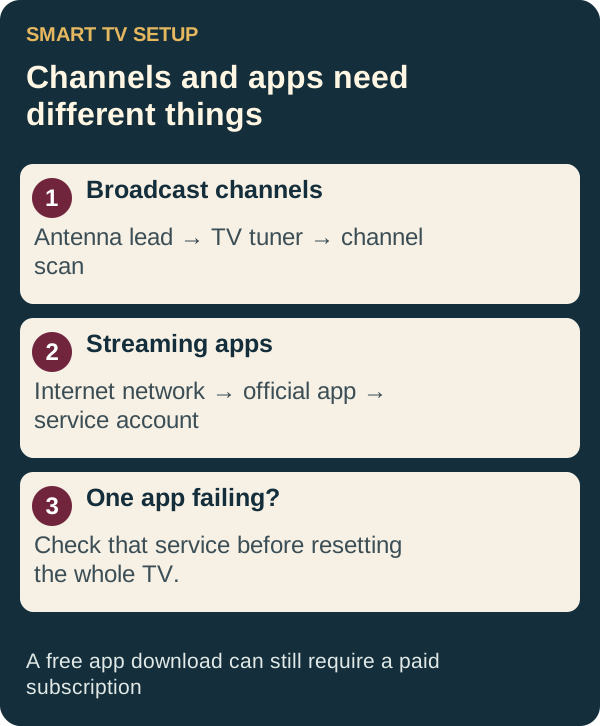
First connect the TV to the internet. Open the built-in Apps menu or store, search for the service and check its publisher before installing. Samsung uses Apps/Search; LG webOS uses Apps or LG Content Store; Google TV uses the Apps tab or Search. Some stores require a manufacturer or Google account. An app being free to download does not mean its content is free.
Official details: Samsung Australia: download and manage apps ↗ · LG Australia: webOS and app installation ↗ · Google TV: install apps ↗
If other apps play, check the affected service’s status and your subscription, update the app and restart the TV. Reinstall only when you know your sign-in details; clearing app data signs you out and removes local settings. If the app is absent from the store, it may not support that model or region. Use an officially supported streaming device rather than an unknown app package.
Official details: Samsung Australia: download and manage apps ↗ · Google TV: install apps ↗ · Google TV: troubleshoot apps and operation ↗
Sign out of personal streaming and store accounts. For your own TV that you are selling, follow the manufacturer’s reset instructions after saving what you need. Do not factory-reset a hotel or host’s TV. Our casting guide offers another way to watch where supported.
If free-to-air channels work but an app does not, the antenna is not the first thing to change. If apps work but channels are missing, check the TV source and antenna path. For a TV that is offline, start with network setup.
Check Live TV source, the antenna lead and the correct scan type. If reception is still poor, contact the building manager or a qualified antenna technician; do not climb onto a roof.
Request a new code from the TV app and enter it on the exact official address shown. Check you are signing into the intended account.
Check the TV model, software and Australian app availability with the manufacturer. Do not change region settings to evade restrictions or install unknown downloads.
Give the device model, software version, exact error text and the checks you have already tried. Explain whether the issue affects one app, one device or several. Remove personal information from screenshots. Never share a password, recovery code or one-time sign-in code.
Use Settings search for the feature name and check the official instructions for the exact model. Do not choose a reset option just because it is the closest label you can find. If you still need help, contact the site owner with the guide title and the unclear step.
Plan a Brisbane or SEQ public transport trip.
Search and select your origin and destination, choose when to travel and check available services. You can save your preferences on this device; the travel date starts at today.
Check official service disruptions ↗Local reporting, council updates, transport and public notices from trusted publishers.
More local sources and public service updates: Articles, dates and full details remain with the original source.
Brisbane Daily links to these independent publishers and public agencies; it is not affiliated with them.
ABC, SBS, 7NEWS and The Conversation · politics prioritised
International headlines from BBC, SBS, 7NEWS and The Conversation
The latest stories from BBC Sport, 7NEWS Sport and SBS Sport
Free-to-read reporting on game studios, platforms and development
A small daily reflection for every sign. For entertainment and inspiration.
Political reporting · up to three Australian and three world stories per edition
Dated polling snapshots with fieldwork dates and reported movement. Refresh retrieves headlines; stored poll figures change only when reviewed.
Loading recent polling coverage…
Polling reflects survey estimates, not election results. Changes are percentage points against the named comparison; different pollsters and questions are not directly comparable. Stored figures are dated snapshots, not forecasts or a live polling feed.
Fixtures, live scores, stats and squads from trusted sources
Upcoming council-listed events with dates, venues and cost details when supplied by the organiser.
Loading current events…
Highly rated local charity shops and thrift stores
Ratings and review counts are a recent Google review snapshot listed by OpSpot (checked 27 October 2026); ratings and opening hours can change. Tap a shop to see its current Maps listing.
Check the provider for current disruptions and warnings. These links are not a live status summary.
Open a nearby search in Google Maps. Maps can use your device location to sort places around you.
For supermarkets, these links search Woolworths, Coles and IGA only. No Aldi search is included.
Fresh OzBargain listings with product images, where the feed provides them.
Enter your preferences once, then open matching searches across job boards
Brisbane and Queensland dates, alongside reminders saved on this device
Coloured dots mark days with events. Choose a date to see event details and add your own reminder.
Reminders are stored only in this browser. Export a backup file to move or restore them on another device.
Major public holidays, community dates, arts events and sport. Event links open the organiser or official source.
Play solo, start a table with friends, or download a standalone game.
Loading games…
Free, ad-free apps for Android.
Easily edit and sign PDF or Word documents, convert seamlessly between DOCX and PDF, and turn images into text.
Features & installation →Find simple everyday recipes or more elaborate dishes, drinks and meals for entertaining. Includes barcode lookup.
Features & installation →Create a ringtone from a microphone recording or an audio track on your device. Trim it to a clip of up to 30 seconds, add effects and fades, preview your ringtone, then save it to your device.
Features & installation →Write simple invoices, track warranties and receipts, look up products quickly, and get basic tech troubleshooting help.
Features & installation →Manage weekly income and outgoings, review long-term projections, and work towards your financial goals.
Features & installation →Protected games, files and site tools
Admin access is limited to people with the shared password.
Loading 7-day total…
Select a day to see its approximate visit count.
Aggregated counts only. The same network address counts once per 30 minutes; shared networks may appear as one visit. Temporary keyed hashes expire within 36 hours.
Counted from 29 October 2026. Each successful download-link request counts, including repeat presses. These are not unique people, completed downloads or installations. Automated requests may be included; direct Google Drive links bypass this counter.
Close every current table and invalidate its room code.
Choose a coordinated colour palette for everyone visiting Brisbane Daily.
Recent sign-ins, sign-outs, room closures and theme updates. Passwords and visitor IP addresses are never shown.
Protected downloads and the multiplayer lobby. Public Android apps are available in Apps.
Solo games download as standalone HTML files. Multiplayer games run on the site; their room-dependent HTML downloads are no longer offered. Drive items open as individual files; APKs install on Android devices.
Brisbane Daily: practical local information, free tools and independent apps.
BrisDaily is a personal dashboard built for people in Brisbane and South East Queensland. It brings together local guides, weather, public-service links, events and sport, alongside games and practical tools.
The site is run by its editor, who also develops the Android apps listed here with assistance from AI. BrisDaily is independently operated; it is not a council, hospital, transport operator or emergency-information service.
News headlines link to independent publishers; the full articles remain with those publishers. Guide pages show sources and a checking date. A guide is desk-researched unless it explicitly says a place or product was personally visited or tested.
Read our editorial and corrections policy, or contact the site owner with feedback or a correction.
How Brisbane Daily prepares guides, links and app listings.
Published 29 October 2026.
Our guides aim to answer a practical question and link to the relevant official providers. Transport, access, booking and safety details can change. The checking date records when the material was reviewed; it is not a promise that every provider has remained unchanged since then.
We distinguish planning suggestions from provider rules and desk research from first-hand experience. We do not claim to have visited an attraction, tested an app or verified accessibility unless the page says how that was done.
AI assists with research, drafting, illustrations, coding and app development. It can make mistakes. Sources, limitations and ways to report problems are provided so readers can check important details. We do not invent ratings, testimonials, testing results or missing download metadata.
Headlines and data panels are drawn from external sources, with source links and available timestamps. We aim to link to freely accessible news. If a publisher changes its access conditions, please report the link. Official warnings, service disruptions and current provider instructions take precedence over summaries here.
Photography is credited where displayed. Original illustrations explain a process or route concept; they are not official maps, product screenshots or evidence of a visit.
Our Android apps are free and ad-free. Listings identify known platform and release details; unknown information is left unconfirmed. A listing is not a claim of independent malware scanning or security certification. Keep Play Protect enabled and review device prompts and app permissions.
Send a correction to the site owner with the page address, the detail in question and a reliable source if possible. Reports are reviewed by the editor. Substantive corrections should be reflected in the page’s checking date or revision note; dates should not be advanced solely to make a page look new.
Do not send passwords, verification codes, private documents or medical information through the contact form.
Send feedback, report a problem or suggest an improvement.
Choose saved audio, trim a 30-second section, adjust volume and export a ringtone.
Upload audio or choose a saved file from this browser. Your trim points and volume settings stay on this device until you clear them.
Choose audio to start editing.
Edit your cities with ✎ · saved on this device · daylight saving adjusts automatically · Brisbane stays fixed